
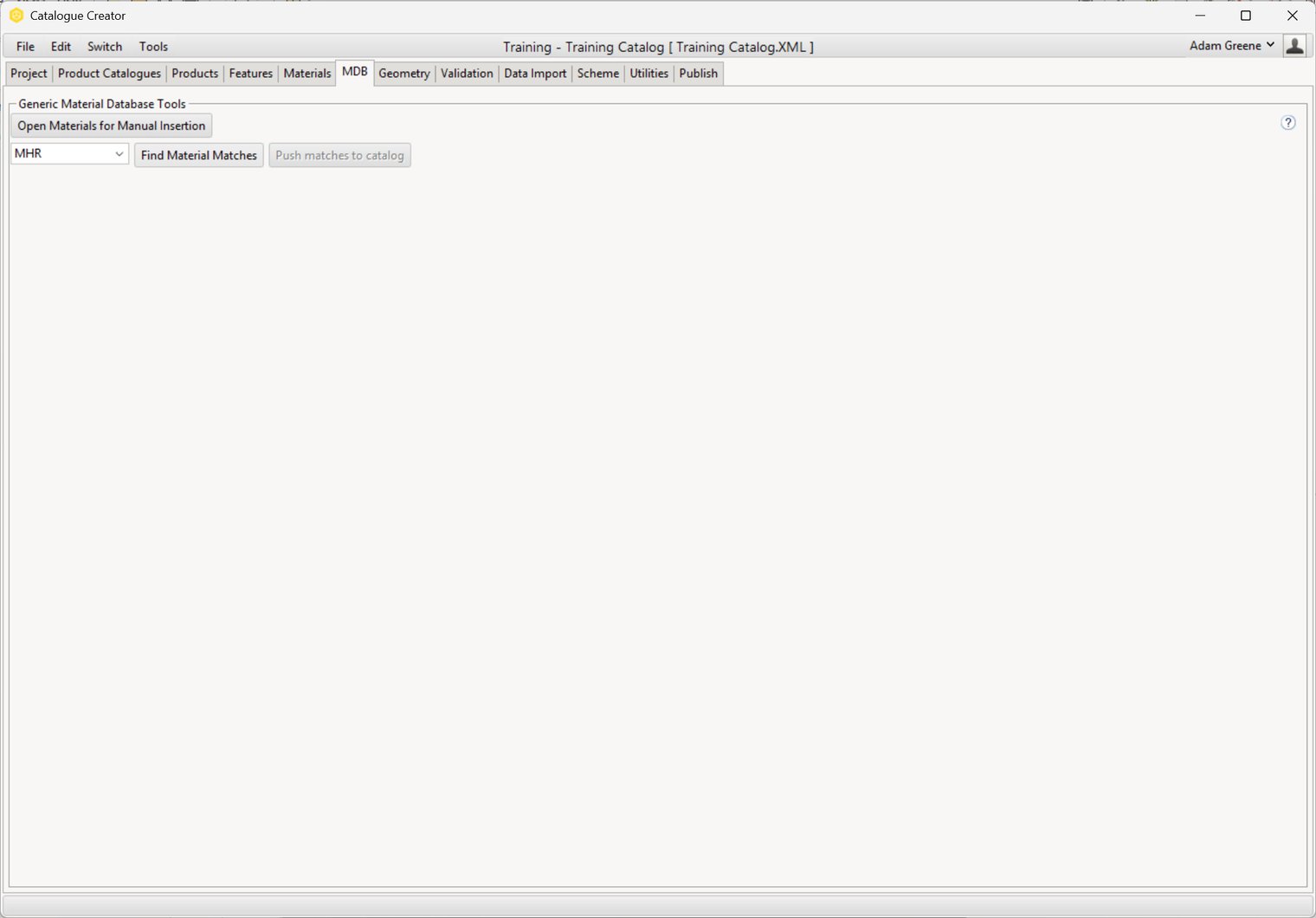
This page covers the MDB tab in Catalogue Creator, a tab added by the Material Database Catalog Tools extension. These tools let Catalog Specialists link materials from the Material Portal to their catalogs.
Overview
Materials have always been a point of contention and a source of difficulty across all sections of the ecosystem. Up until now, furniture manufactures, developers, and catalog specialists have been in charge of creating the materials that match the options their products use, instead of the material companies that actually create those materials. This has led to lots of material variation inside drawings — materials that are technically the same end up looking different across extensions, and create visual disparity for users in their renders.
In order to help create a more uniform experience for all users across the industry, we have our Material Database tool in Catalogue Creator. This free tool allows you to directly pull materials from the textile companies and get the most accurate look inside drawings and renders. This tool will allow you to add new materials to your catalog quickly and easily, as well as update existing materials to now pull from the database.
Additionally, this reduces bloat and data duplication on user machines. A user only has to download a material swatch once, and all furniture manufacturers will use that single swatch. Each catalog and extension no longer has to store every material. Since user machines often have limited storage capacity, this lets us reduce the overall storage consumption of CET.
Lastly, this lets furniture manufacturers get material data aligned with what a material company says it should be. The material company can keep its own data up-to-date on the server — information like pricing, weight, flame resistance, etc. Catalog specialists no longer need to worry about getting material information updates from textile companies, adding it to their catalogs, and pushing those updates live in a timely manner. This is particularly beneficial for extensions in maintenance mode, who don't receive regular updates from developers or catalog specialists.
Let’s take a look at how it works.
Related Reading
For information on using the Material Portal in general, see its Help Center articles.
For information on the technical/developer side of the Material Portal, Material DB, and using MDB materials in programmed snappers instead of catalog symbols, see Developer's Overview of Material DB & Material Portal.
Accessing the Tools
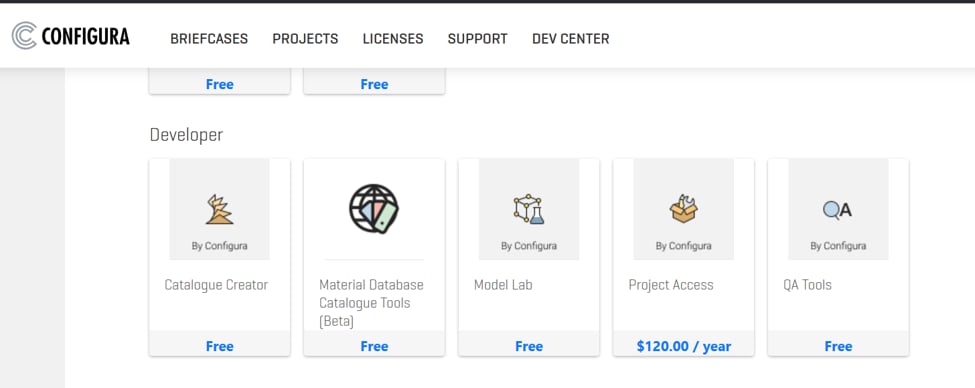
These tools are not in Catalogue Creator by default. You'll need to install the "Material Database Catalogue Tools" extension. It's located in the Configura Marketplace under the Developer section, and is a free addition to Catalog Creator.
Once you've downloaded the tool, you'll see a new tab inside Catalogue Creator named MDB.
Turning MDB On/Off
You can toggle the MDB tool on and off in your Extension Details:
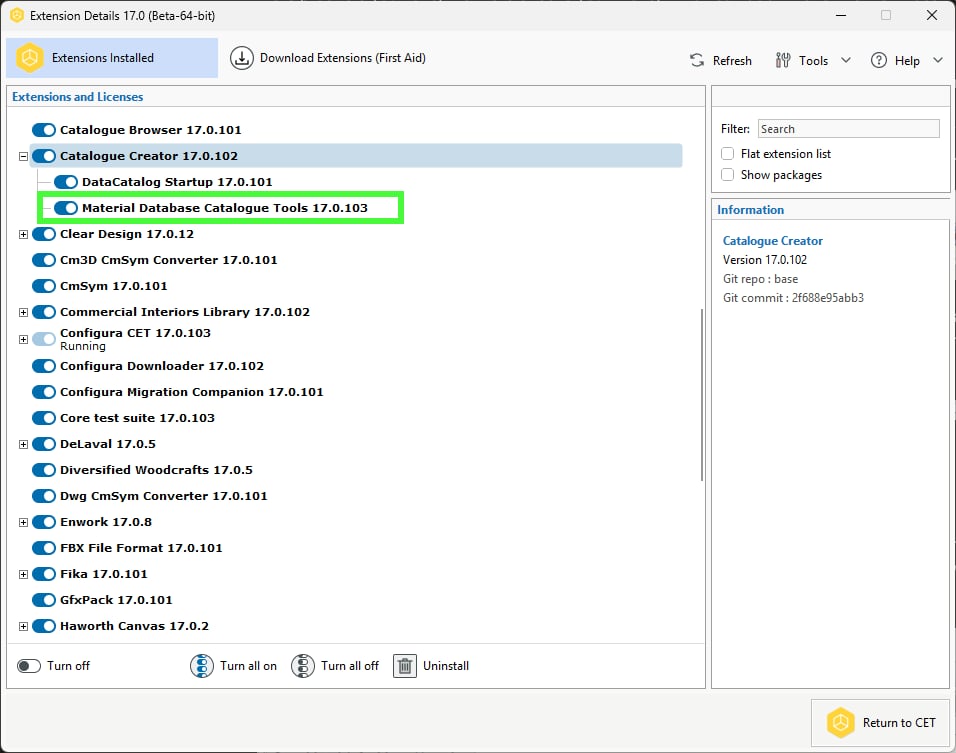
If the Extension is toggled off, the tab will be missing from Catalogue Creator.
Help Menu
If you have any questions about the extension, you can always open up its Help Menu by clicking the question mark symbol in the upper right hand corner of the MDB tab.
.png)

Manual Insertion
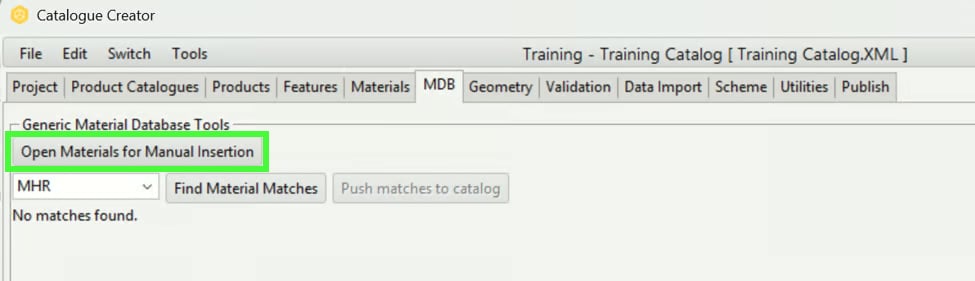
Whether you’re manually replacing fabrics you have in your catalog, or you’re looking to add new ones, the first place to start is with the "Open Materials for Manual Insertion" button.
Clicking that will open up this dialog. You can see the three textile companies I have available here: Maharam, Mayer Fabric, and Momentum.
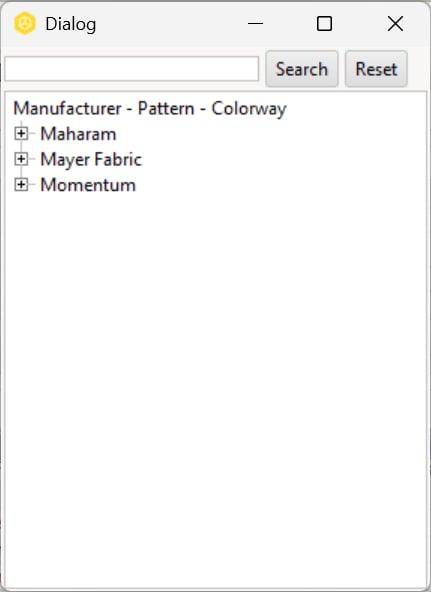
These are the current three material companies available in the Portal. As more companies onboard they will automatically show here.
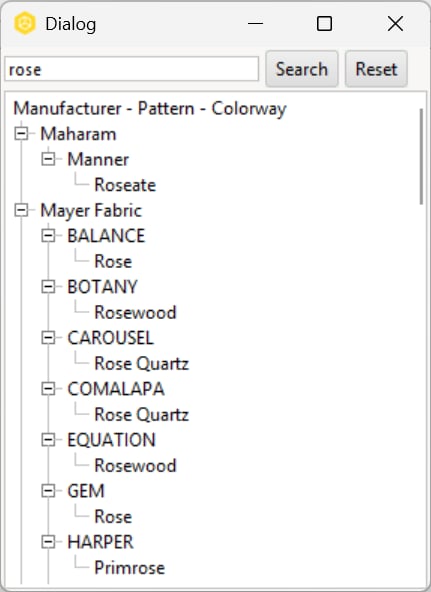
The Search function operates off of two of the three fields: pattern and colorway. It does not search company name. You can use either or both in your searches:
The search will still return results with misspelled or incomplete words: Here we're able to find Black Tulip from "bla tu."
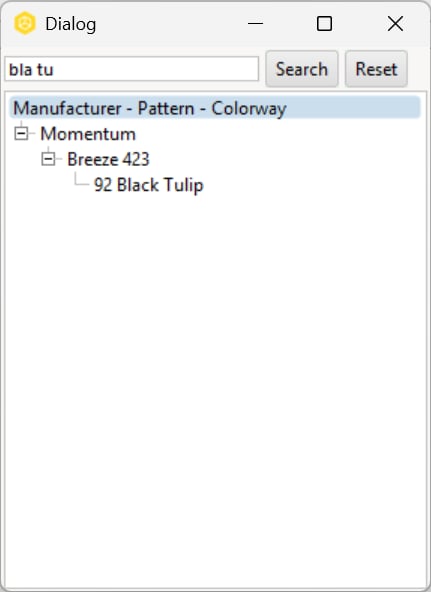
To get the best results, use both pattern and colorway.
Adding Materials
In the "rose" search example above, you can see that all three of the companies came back with results. Scrolling through, you can see that any material with “rose” in it came back as a result, including rosewood and rose quartz.
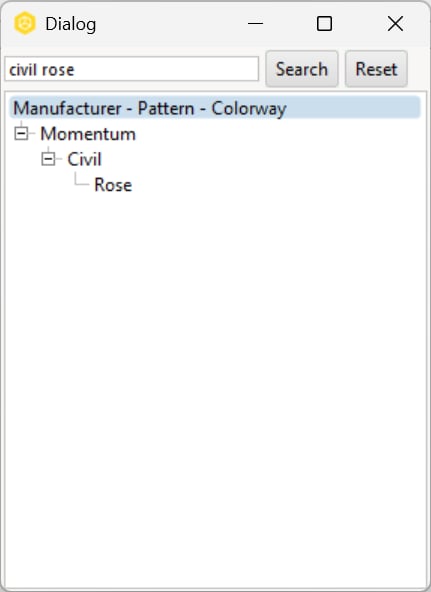
However, if you add the pattern to the search, in this case Civil, you'll get the singular Rose material you're looking for.
Once you've found the material you need, you can simply navigate over to your Materials tab, and then drag and drop the material from the dialog box to the Material spreadsheet.
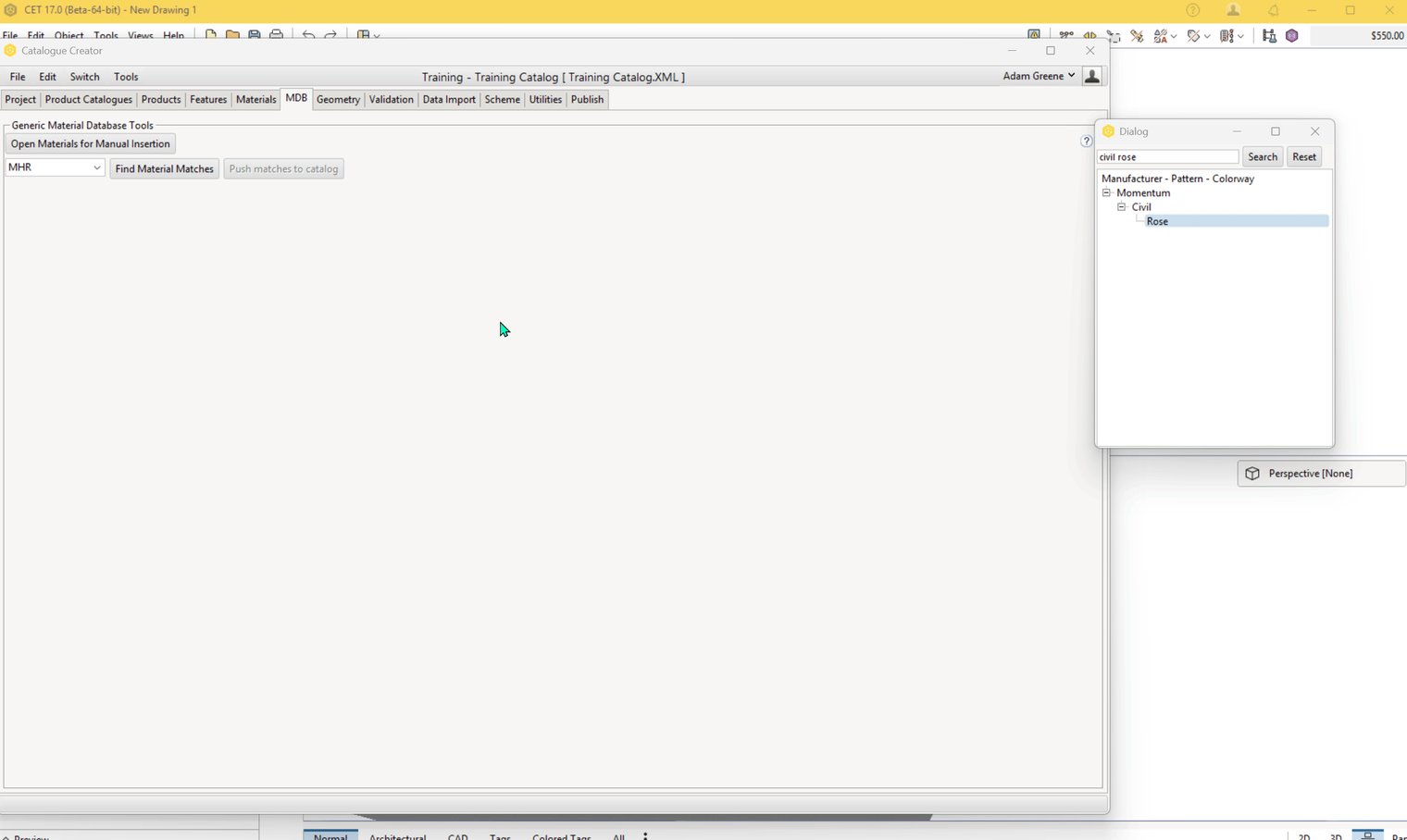
If you already have a material entry that matches the material you're dropping in, that entry's file references will simply update (Preview Url, Material/Texture URL (Realtime), and Material/Texture URL (Render). This update will not modify your Code or Description columns.
If the drop action doesn't find an existing material that matches, it will append the new material to your Materials list.
Bulk Adding Materials
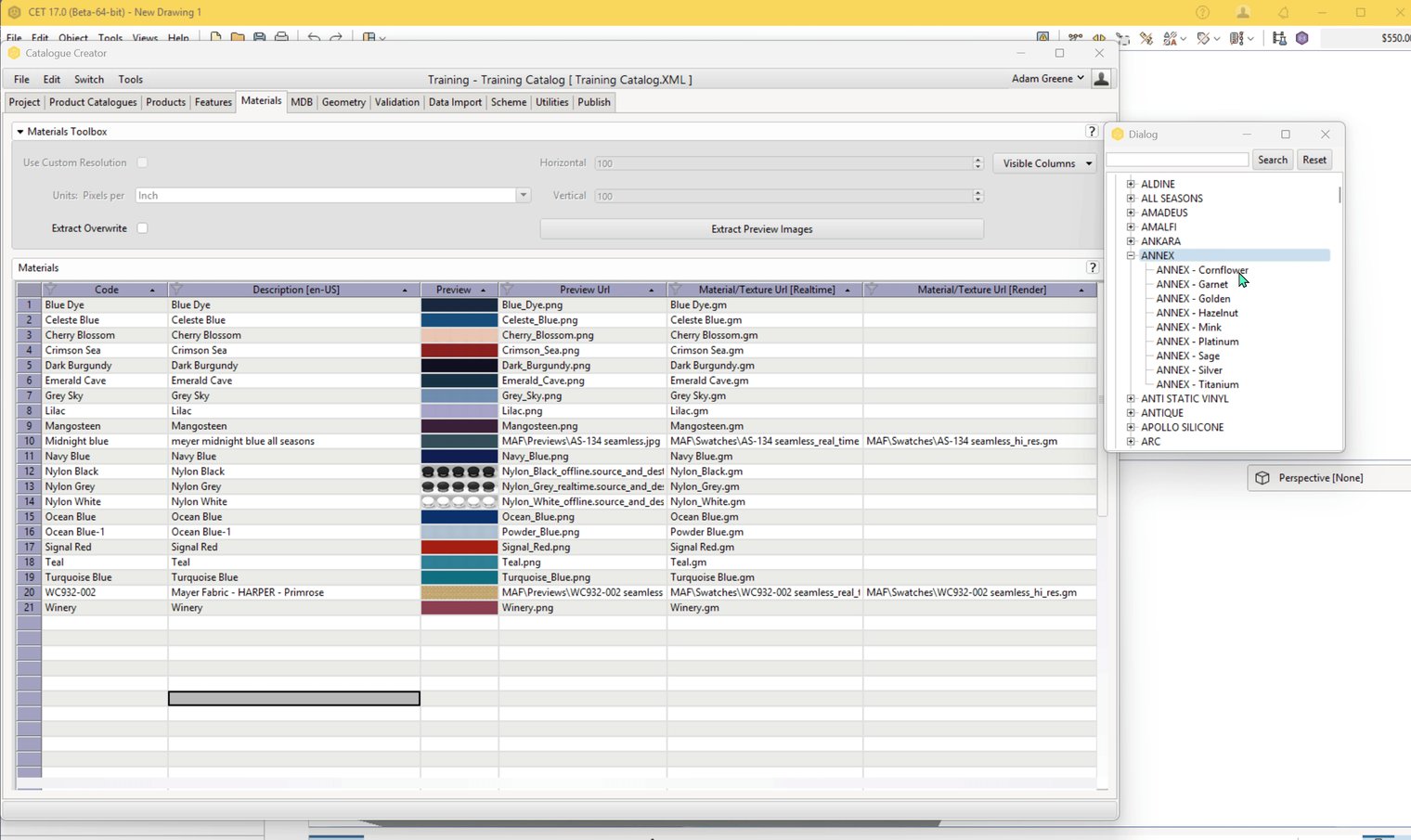
You can also drag and drop multiple materials at once, and the same effect will happen with all of them. You can select multiple disparate entries with Ctrl+Click, or click on the pattern name and drag that instead. Dragging a heading will add all of that pattern's colorways to the spreadsheet.
Note
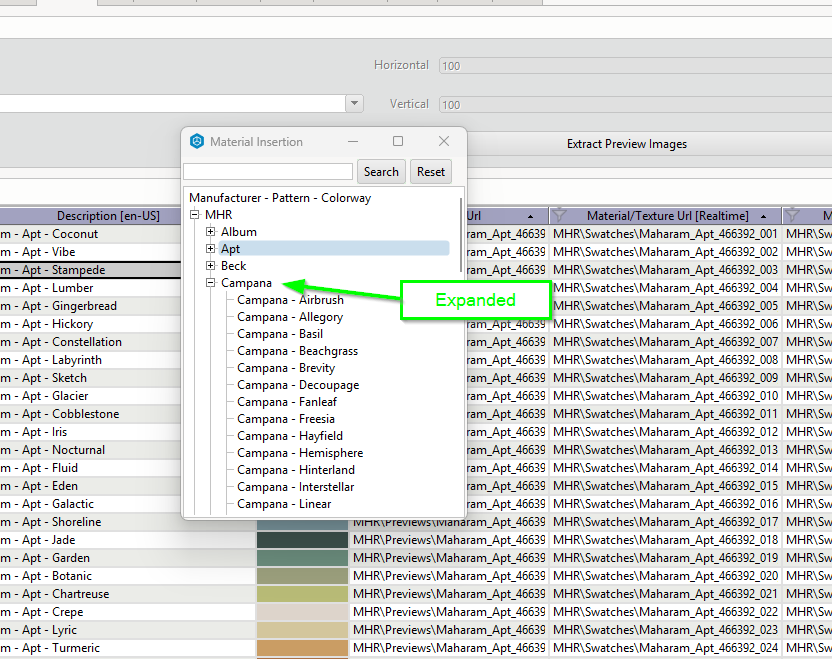
If you have not yet expanded a pattern via the + button, dragging the pattern like this will not work:
Bulk Updating Existing Materials
If your catalog already has a large number of existing materials, you can use the MDB to update them in one go instead of dragging and dropping individually. In order to do multiple replacements this way you must have your material descriptions correct enough for the tool to recognize them as matches for MDB materials. If you have silly descriptions that aren’t relevant to the material, or you neglected to use descriptions, this will not function as intended.
Using colorway, pattern, and company in your descriptions will make replacing materials easier.
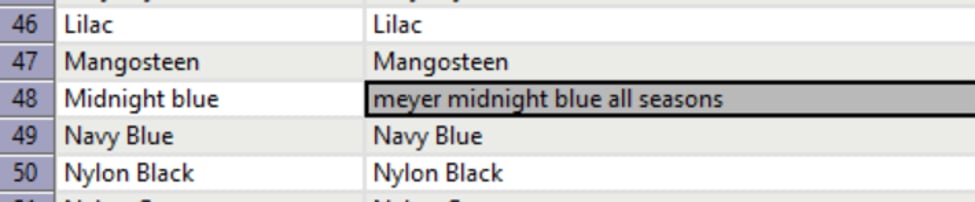
For this example, we have added in Midnight Blue to the list of fabrics. In the description we have called out Meyer as the textile company. Eagle-eyed readers will notice Mayer is spelled incorrectly, which is intentional.
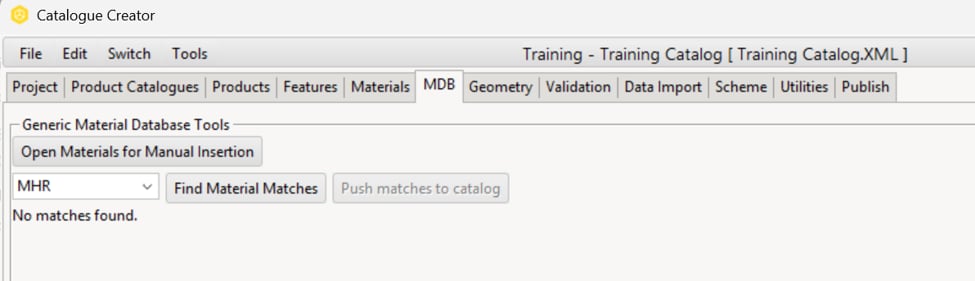
Now, select Mayer Fabrics in the dropdown ("MAF") and use "Find Material Matches" in the MDB tab.
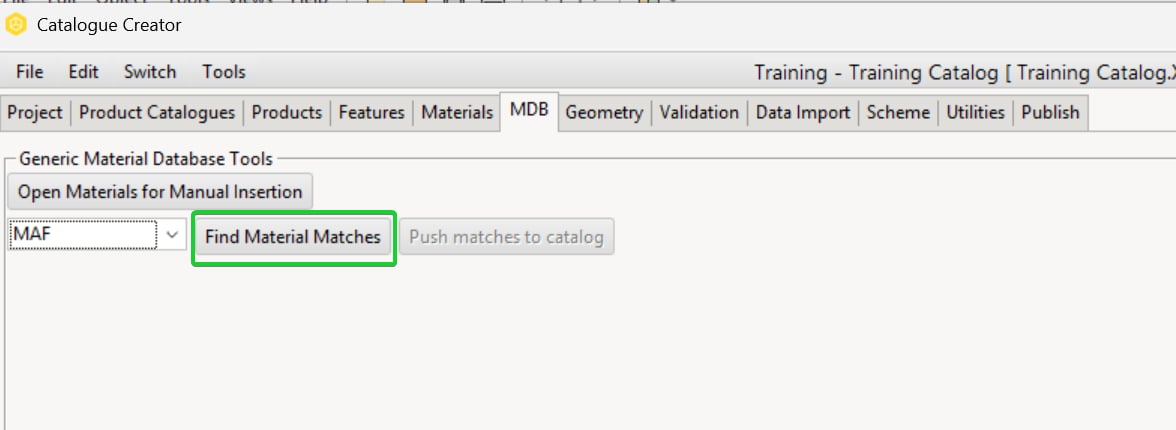
Clicking "Find Material Matches" will open a dialog window showing you the search progress. The more materials you have in your project, the more checks you’ll have, which can add time to this. For massive catalogs featuring over 20,000 different materials, you’re going to be waiting a while, but it will eventually get you there.
Now that the database has searched everything, we see the matches it came up with. You can see at the far right of the dialog that CET has a confidence of 92.35%. Our result is a Mayer Fabric from their ALL SEASONS line that is Midnight Blue.

Any matches with a confidence rating of over 80% will appear in the results list, and any with a confidence rating of over 94% will be automatically checked in the "Use?" column.
There's a chance you’ll get multiple results, and you can choose which ones to use by clicking the "Use?" checkbox on the far left. Once you have the materials you want to use selected, simply click "Push Matches to Catalog", and CET will take care of the rest.

Now we can see the Midnight Blue from Mayer, as well as the URLs we need for our previews. The tool has updated all the relevant file references to point to the information on the MDB server, and left our Code and Description untouched.
Occasionally you might want to change the Code of the material before you push it, which is quite simple. Before you "Push matches to catalog", you can change the code in the "Catalog Code" column. Double click inside the cell and replace its text with your desired text. Any change to the code before pushing it will carry over into your Materials tab.
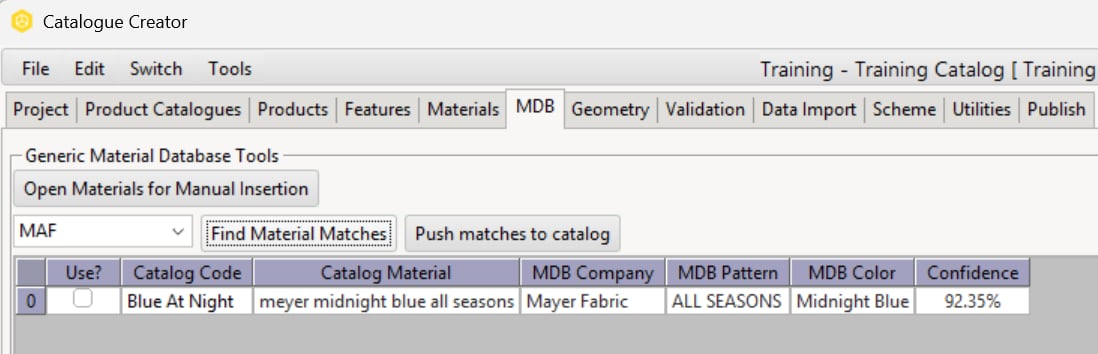
In the above example, we have changed the Catalog Code to Blue At Night, which, if we look at the Materials tab, we see the name change pushed to the catalog.

If for some reason you aren't seeing material previews appear in your Materials tab after pushing, try hitting F5 to refresh the page.
Example: Matches & Confidence Ratings
In the following example, there are ten materials in the catalog. Each description is different in some way — some are fully accurate, some have misspellings, some have different formatting, some don't have enough information, and some have the wrong manufacturer.
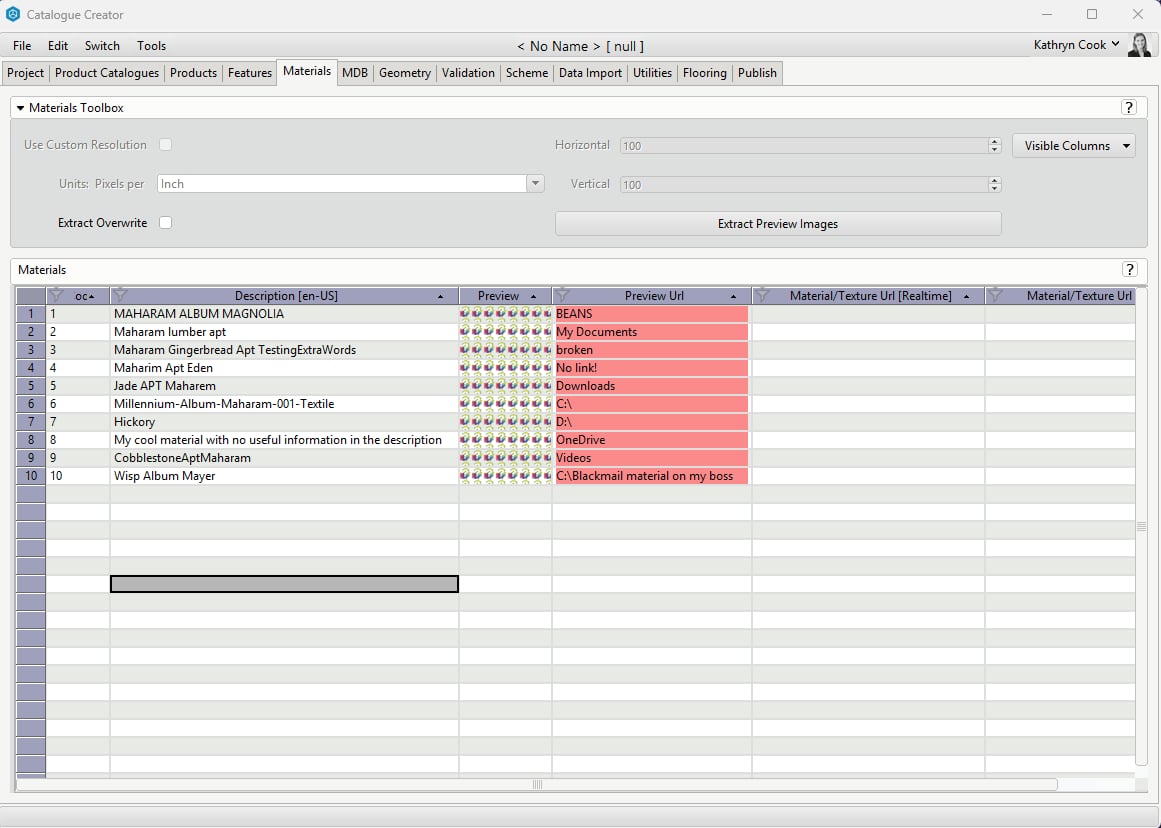
Here we see the matching results and varying confidence levels in the tool's output:
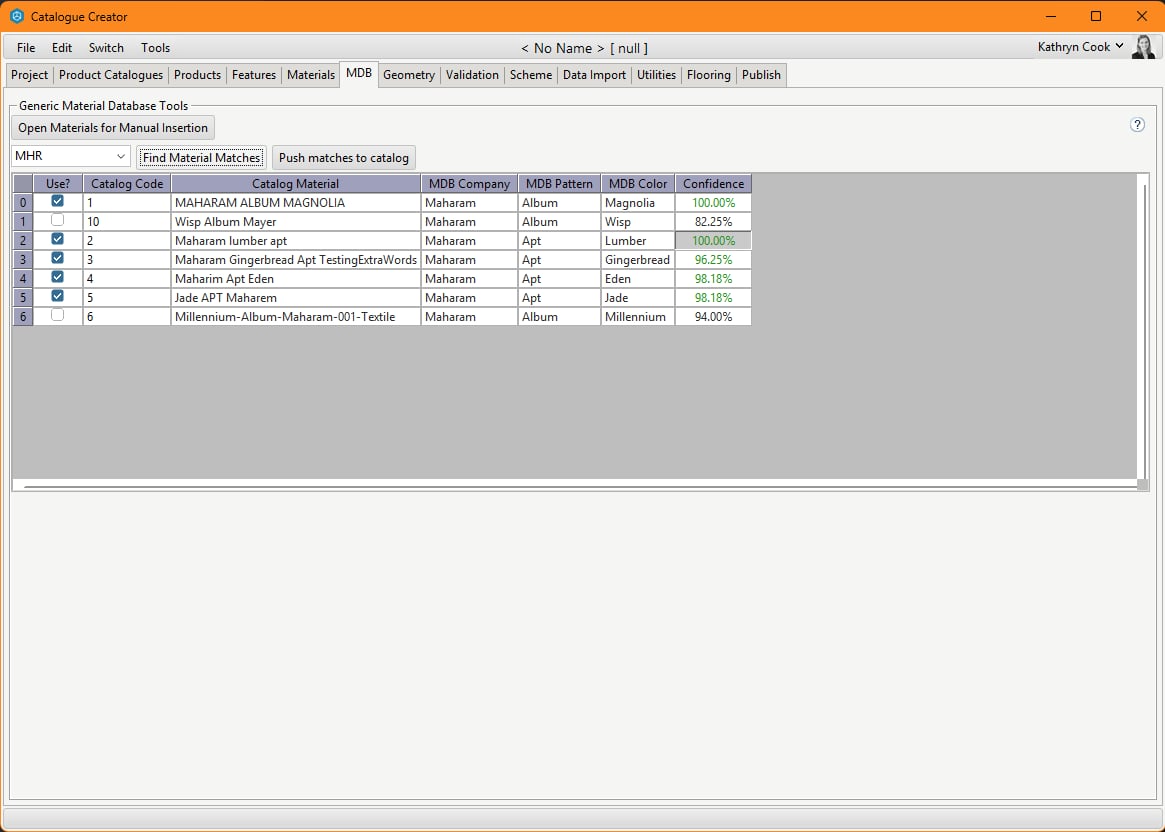
As you can see, only seven of the materials were able to find a match, and those matches have varying confidence levels. Materials that the tool is >94% confident about have the "Use?" column already checked.
If we check the rest of the results and push them to the catalog, we can see which of our materials successfully updated:
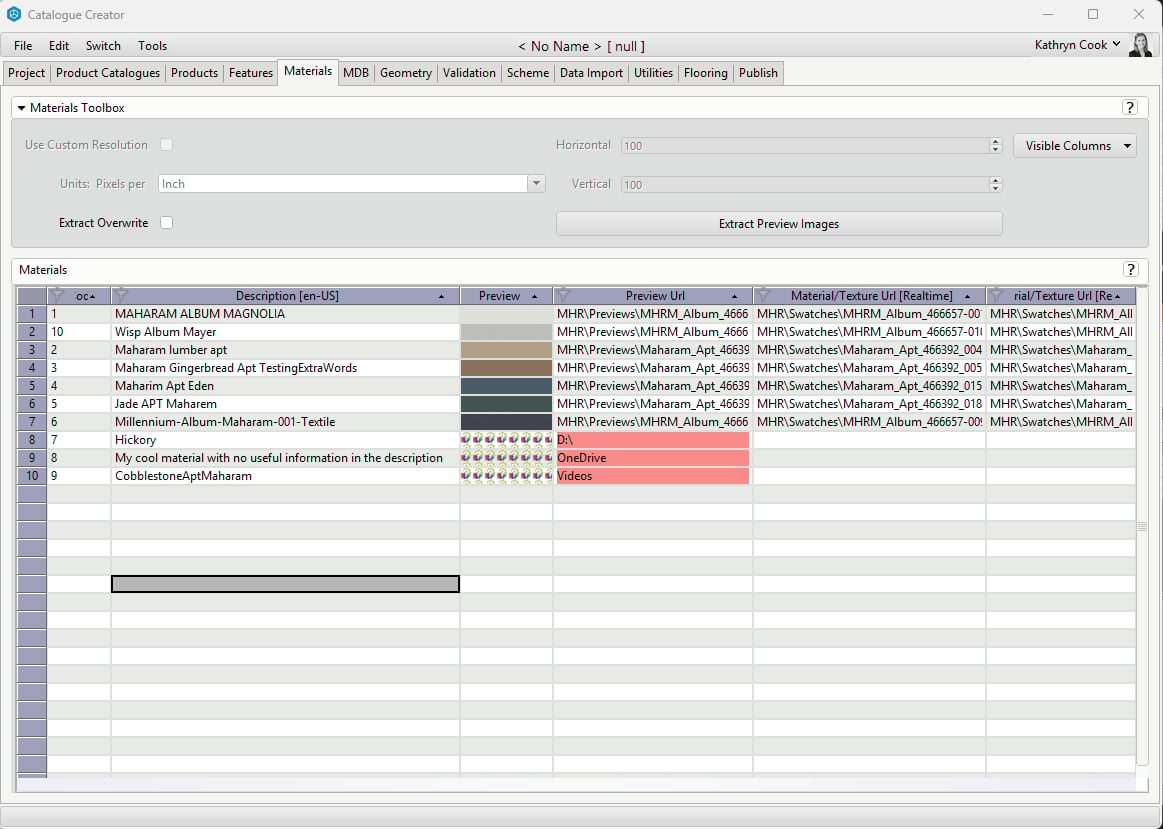
That’s all there is to it! You can replace any fabric matches you want, either through the search and replace, or the drag and drop.
Comments
0 comments
Please sign in to leave a comment.